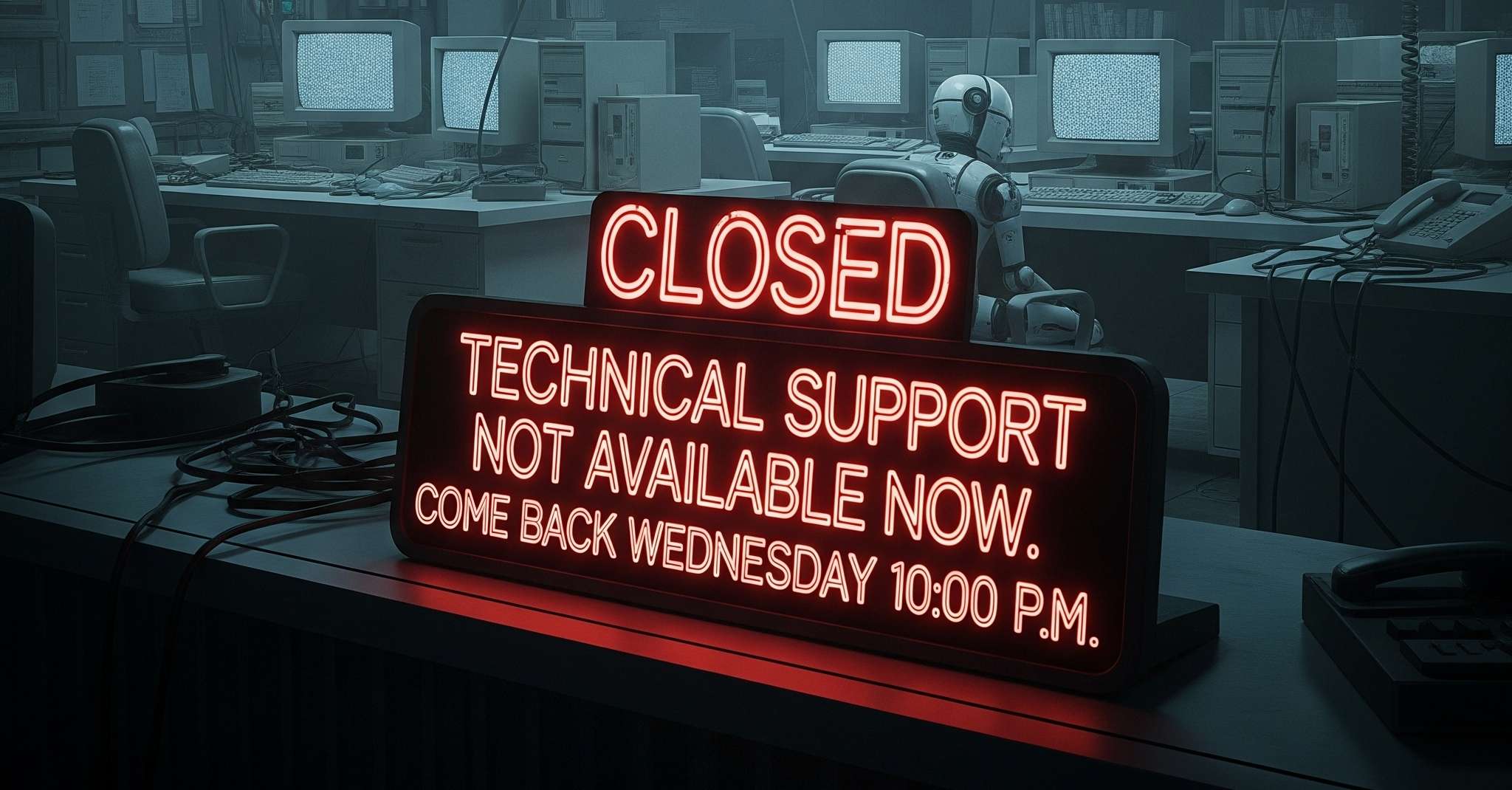
MCBT Live Technical Support – Zoom Drop-in Session
Welcome! This is your dedicated space to get live, real-time help with any technical challenges you might be facing with your campus services, portals, or software. Our support team hosts a live Zoom session every week just for you.
How to Join the Session: A Step-by-Step Guide
Joining is simple. You do not need a meeting ID or a password. Just follow these steps:
- Be on This Page at the Right Time Visit this webpage on any Wednesday between to (SLST).
- Look for the “Join” Button During this 30-minute window, a blue button labeled “Join Zoom Technical Support” will automatically appear below. If you are on the page before , you may need to refresh your browser.
- Click the Button to Enter Click the button. Your browser will ask for permission to open the Zoom application. Allow it, and you will be taken directly into our support meeting.
- Wait in the Lobby You may be placed in a virtual waiting room first. Please be patient, and a member of our support staff will admit you as soon as they are available to help.
සාදරයෙන් පිළිගනිමු!
ඔබගේ කැම්පස් සේවා, පෝටල් (portals) හෝ මෘදුකාංග සම්බන්ධයෙන් ඔබ මුහුණ දෙන ඕනෑම තාක්ෂණික ගැටලුවක් සඳහා සජීවීව, එසැණින් සහාය ලබා ගැනීමට ඇති විශේෂිත ස්ථානය මෙයයි. අපගේ සහායක කණ්ඩායම ඔබ වෙනුවෙන්ම සෑම සතියකම සජීවී Zoom සැසියක් පවත්වයි.
සැසියට සම්බන්ධ වන ආකාරය: පියවරෙන් පියවර උපදෙස්
සම්බන්ධ වීම ඉතා සරලයි. ඔබට Meeting ID එකක් හෝ මුරපදයක් (password) අවශ්ය නොවේ. මෙම පියවර අනුගමනය කරන්න:
- නියමිත වේලාවට මෙම පිටුවේ රැඳී සිටින්න. සෑම බදාදා දිනකම රාත්රී 10:00 සිට 10:30 දක්වා (ශ්රී ලංකා සම්මත වේලාවෙන්) මෙම වෙබ් පිටුවට පිවිසෙන්න.
- “Join” බොත්තම සොයා ගන්නමෙම මිනිත්තු 30ක කාලය තුළ, “‘Join Zoom Technical Support'” ලෙස නම් කරන ලද නිල් පැහැති බොත්තමක් පහතින් ස්වයංක්රීයව දිස්වනු ඇත. ඔබ රාත්රී 10:00 ට පෙර පිටුවට පැමිණියේ නම්, ඔබට ඔබගේ බ්රව්සරය (browser) refresh කිරීමට අවශ්ය විය හැකිය.
- ඇතුල් වීමට බොත්තම ක්ලික් කරන්නබොත්තම ක්ලික් කරන්න. එවිට Zoom යෙදුම (application) විවෘත කිරීමට ඔබගේ බ්රව්සරය අවසර ඉල්ලනු ඇත. එයට ඉඩ දෙන්න (Allow). එවිට ඔබව කෙලින්ම අපගේ සහායක සැසිය වෙත ගෙන යනු ඇත.
- පොරොත්තු කාමරයේ (Lobby) රැඳී සිටින්නඔබව පළමුව තාවකාලික පොරොත්තු කාමරයක (virtual waiting room) රැඳවීමට ඉඩ ඇත. කරුණාකර ඉවසීමෙන් සිටින්න. අපගේ සහායක කාර්ය මණ්ඩලයේ සාමාජිකයෙකුට හැකි වූ විගස ඔබව සැසියට ඇතුළත් කර ගනු ඇත.